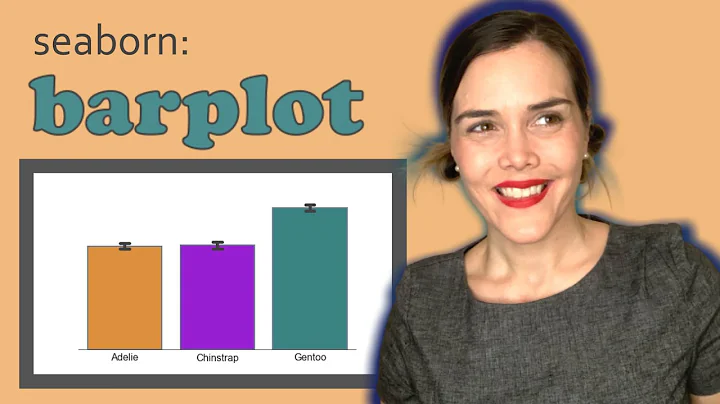
Seaborn is a Python visualization library based on matplotlib. It provides an advanced interface to draw attractive statistical graphics. Seaborn is actually a more advanced API encapsulation on the basis of matplotlib, which makes drawing easier, and it does not require a lot of adjustments to make your graphs refined.

Note: All codes are implemented in IPython notebook
barplot (bar graph)
bar graph represents the estimated value of the central trend of the numerical variable and the height of each rectangle, and uses error bars to provide uncertainty about the estimated value Some instructions. The specific usage is as follows:
seaborn.barplot(x=None, y=None, hue=None, data=None, order=None, hue_order=None, estimator=(function mean), ci=95, n_boot=1000, units=None , orient=None, color=None, palette=None, saturation=0.75, errcolor=&39;.26&39;, errwidth=None, capsize=None, dodge=True, ax=None, **kwargs)
Specific examples to learn the usage of some of the parameters inside:
%matplotlib inline
import pandas as pd
import numpy as np
import seaborn as sns
import matplotlib.pyplot as plt
 is used to solve the problem of not displaying Chinese
plt.rc("font",family="SimHei", size="12")
sns.set_style("whitegrid")
The content of the data set used in this article is as follows:
data.head(5) data is a dataframe
x, y (str): the column name in the dataframe
data: dataframe or Array
sns.barplot(x="color", y="age", data=data)
Explanation of the image: Seaborn will classify the value in the "color" column and then follow the method of estimator parameters (default Calculate the corresponding value for the average value, and the value calculated by is used as the value displayed in the bar graph (the error bar on the bar graph indicates the error of the various values of relative to the value displayed in the bar graph )
hue (str): the column name of the dataframe, according to the value in the column name to form a classified bar graph
sns.barplot(x="color" y="age",data=data,hu e="gender")
order, hue_order (lists of strings): used to control the order of the bar graph
fig,axes=plt.subplots(1,2)
sns.barplot(x="gender", y="age" , data=data, ax=axes[0])
sns.barplot(x="gender", y="age", data=data, ax=axes[1], order=["女","男"])
estimator:
fig,axes=plt.subplots(1,2)
 on the left, the default is the average value
sns .barplot(x="gender", y="age", data=data, ax=axes[0])
 right picture, median
sns.barplot(x="gender", y="age", estimator =np.median, data=data, ax=axes[1])
ci (float): Confidence interval (between 0-100), if you fill in "sd", the error bar uses the standard error. (The default is 95)
fig,axes=plt.subplots(1,2)
sns.barplot(x="color", y="age", data=data, ci=0, ax=axes[0]) left
sns.barplot(x="color", y="age", data=data, ci="sd", ax=axes[1]) The picture on the right
capsize(float): sets the error bar caps ( up and down two The width of the root horizontal line )
fig,axes=plt.subplots(1,2)
sns.barplot(x="color", y="age", data=data, ax=axes[0], capsize=.2 ) The left picture
sns.barplot(x="color", y="age", data=data, ax=axes[1], capsize=.5) The right picture
palette: palette, control different colors style
fig,axes =plt.subplots(2,1)
sns.barplot(x="color", y="age", data=data, ax=axes[0]) The picture above
sns.barplot(x="color", y= "age", data=data, palette="Set3", ax=axes[1]) The following figure
X, Y-axis interchange
fig,axes=plt.subplots(1,2)
sns.barplot(x="age" ,y="color",data=data,ax=axes[0]) left image
sns.barplot(x="color",y="age",data=data,ax=axes[1]) right image
countplot Getting started
A count chart can be thought of as a classification histogram , rather than a quantitative variable. The basic api and options are the same as barplot(), so you can compare counts in nested variables. (The working principle is that classifies the input data , and the bar graph shows the number of categories ) The specific usage is as follows:
seaborn.countplot(x=None, y=None, hue=None, data=None, order=None , hue_order=None, orient=None, color=None, palette=None, saturation=0.75, dodge=True, ax=None, **kwargs)
Note: The parameters of countplot are basically the same as those of barplot, which can be compared and remembered. One difference is that x and y cannot be input at the same time in countplot, and there is no confidence interval for countplot.
Experience it based on an example:
fig,axes=plt.subplots(1,2)
sns.countplot(x="gender", data=data, ax=axes[0]) Left image
sns.countplot(y="gender" , data=data, ax=axes[1]) right
fig,axes=plt.subplots(1,2)
sns.countplot(x="gender", hue="smoker", data=data, ax=axes[ 0]) Left image
sns.countplot(y="gender", hue="smoker", data=data, ax=axes[1]) Right image
fig,axes=plt.subplots(2,1)
sns.countplot( x="color", data=data, ax=axes[0]) The above figure
sns.countplot(x="color", data=data, palette="Set3", ax=axes[1]) The figure below
The points in the figure are for this set of data The mean point of is , and the vertical line is the confidence interval of . By default, the two mean points will be connected. If you don’t want to display it, you can use the join parameter to achieve:
sns.pointplot(x="smoker", y="age", data=data, join=False)
Before we demonstrated the hue parameter of barplot, now we look at the hue parameter of pointplot:
sns.pointplot(x=" smoker", y="age", data=data, hue="gender")
We can see that the error bars of the two categories overlap, making the observation of the data unclear. How to solve this problem? The dodge parameter of pointplot can stagger the overlapping parts:
sns.pointplot(x="smoker", y="age", data=data, hue="gender", dodge=True)
(Controlled by the parameter markers) and the line of the same tone (controlled by the parameter linestyles) to make some changes.
sns.pointplot(x="smoker", y="age", data=data, hue="gender", dodge=True,
 markers=["*","x"], linestyles=["-." ,"--"])
For other styles, please refer to matplotlib line style
to swap the X and Y axes
sns.pointplot(x="age",y="color",data=data)
control different orders through color parameters The color of the layer map
sns.pointplot(x="age",y="color",data=data,color="bb3f3f")
There are other parameters that have the same effect as barplot. You can try it yourself. The above content is written by me in combination with the official documents and my own understanding. If you have any mistakes, please point out and provide comments. Z9z, can communicate and improve . I also hope that what I have written can be used by you after reading this article. Or less help!